Operator: Victim of an LFO Abduction
By Lionel Reinert
In this installment of the Ableton Tips & Tricks, we'll explore some of the possibilities of Operator's LFO section. LFOs (low frequency oscillators) have been a favorite tool of sound synthesists for many years; they're great for creating periodic timbre and volume changes similar to those found in familiar acoustic instruments, but they're also handy for crafting out-of-this-world effects and weird space noises. In the following examples, we'll create some alien magic using Operator's LFO controls and other unique features. FM synthesis has never been easier! As we work through the examples, keep your eyes and ears open for inspiration - you'll soon be heading off in new creative directions, crafting your own sonic textures.
Identified LFO
The waveform frequency of an LFO is usually so slow that if we were to listen to its output, we would perceive it as a rhythmic pulse rather than a pitched tone. For decades, synthesists have used these slow oscillators to influence (or modulate) the other parameters of synthesizers, such as pitch and volume. When routed to pitch, an LFO serves to simulate vibrato, and when an LFO influences amplitude (volume), it creates tremolo. Operator's LFO engine provides many of the more familiar LFO effects, as well as several that are new and "unclassified."
Building Blocks
To clearly understand what Operator's LFO engine can do, let's first take a look at the fundamental building block of FM synthesis: the algorithm. Operator generates sound with its four oscillators - heard either singly or in combination. The algorithm determines how the oscillators are combined and whether or not they modulate one another. Depending on your choice of algorithm, the LFO's modulating effects on the oscillators will be distinctly different. The most basic algorithm is the purely "additive" one, in which all four oscillators are "carriers," meaning that we hear each of their individual outputs as sound, provided all of them are turned on. Using this algorithm, these four sound sources are independent of one another and do not affect each other's harmonic content.
To get started, add Operator to your Set with its default "Factory Settings" patch selected, and activate the global section of the shell, shown below, by clicking on it.

Next, choose the algorithm that shows the four oscillator boxes lined up side by side.

Enable only two oscillators, A and B, while turning off Oscillators C and D. Notice that the Oscillator B Level setting is at -inf dB. Click on B's Level control and hit the delete key on your computer keyboard to quickly normalize this value.

In the LFO's section of the shell, click the square button below the "LFO" label to enable the LFO. Increase the Rate to about 10 o'clock and the Mod amount to about 12 o'clock.

The pitch of Operator's output will now make a smooth sweep up and down as a result of the LFO's sine wave modulating Oscillators A and B. By default, Operator's LFO is routed to all enabled oscillators. Let's change that now; in the display, remove the destination setting on all but Oscillator A, as shown here:

Oscillators A and B are both generating sine waves, but now the pitch of Oscillator B remains stationary, while that of Oscillator A sweeps up and down as the LFO modulates it.
Leaving all settings as they are, go back to the global section of the shell and switch the algorithm back to the default, as shown below:

The sonic difference is noticeable. Two independent pitches have now become a single, more atonal sound, with the LFO influencing harmonic content instead of creating the previously audible pitch sweep. This ability of an inaudible "modulator" waveform to change the audible "carrier" waveform's harmonic content lies at the very core of FM (frequency modulation) synthesis. LFOs make this change happen periodically over time. Experiment with changing the LFO's Rate and Mod controls, and listen to the influence of the LFO over this very simple patch. Also try changing the Level (volume) of Oscillator B, which will change how much influence this oscillator has over the audible Oscillator A.

Can You Hear Me?
Operator's LFO engine can actually be used as a fifth oscillator in the audible range. As mentioned earlier, if an LFO's actual output could be heard, it would sound like rhythmic pulses rather than a recognizable pitch - the waveform actually slaps the eardrum too slowly for our brains to "hear" the tone! But, if the waveform's frequency increases, it can eventually become a pitched tone. The same is true in Operator; although Operator's LFO is never heard directly, when its LFO waveform repeats more than 40-50 times per second (Hertz, or Hz) and it has been routed to an audible "carrier" oscillator, this rhythmic beating speeds up to a rate at which we can't discern the individual "sweeps" any longer and instead hear a secondary pitch superimposed over the original oscillator. Follow this example:
Reset the algorithm so that the oscillators are side by side again, and try this example starting with the Sine LFO setting (the LFO destination should still be set to only Oscillator A). Switch the L (Low) rate setting (shown here in red) to H (High). Play a note and begin adjusting the Rate.

At the beginning of the H range, the frequency of the LFO is still slow enough to be heard as beating. However, as you increase the Rate, it will smear into the pitched range, resulting in the equivalent of adding another oscillator! Furthermore, the Mod amount will now essentially act as the volume control of this phantom oscillator, and Rate as its pitch control.
LFO Mind Tricks
Another potentially interesting result of the above phenomenon is when the LFO's influence is imposed on an inaudible "modulator" oscillator. This requires switching algorithms again. Leave your settings as they are, and switch the algorithm back to the "stacked" default. As the LFO increases in speed to 40-50 Hz, our ears will no longer hear the result as individual periodic sweeps, but instead as a harmonic alteration of the audible static waveform. Let's check this out by again using Operator's L and H (low and high) rate settings. Experiment with the L and H range toggle switch shown in red while adjusting the Rate.

Playing notes in extreme octave ranges while adjusting these parameters will reveal some atonal, clangorous sonic textures not unlike those produced by a ring modulator. Increasing the Mod setting will make this effect more pronounced.
Shape Shifter
Here's a notably more complex example in just a few steps (to hear the changes, play notes in various octaves as we proceed):
Again, leave all your current Operator settings as they are. Now, enable Oscillators C and D, and set their Levels to -13 dB and -18dB, respectively. As mentioned earlier, adjusting the levels of "modulating" oscillators actually adjusts the amount of influence they have over the "carrier," or audible, oscillator(s).

Switch the LFO type to Square, make sure the L rate is selected, and adjust your Rate and Mod to about 12 o'clock, as shown below.

Play some notes, and you'll hear that the sweep of the sine wave LFO has been replaced with the more alarming and abrupt square wave (a frequently employed sci-fi effect).
Now, in the LFO's section of the display, reactivate the LFO destinations for Oscillators B, C and D, as shown here:

As you play, turn the destinations on and off to reveal their varying influences on the sound. Try activating and deactivating different combinations of oscillator power buttons as well.

In most of our examples, we've used the LFO's sine wave to affect the audible waveform's properties. Experiment by trying all of the available LFO waveform choices. The sample & hold waveform was chosen here:

Regaining Control
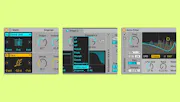
All these button and knob adjustments can of course be controlled via MIDI using Live's MIDI Map Mode capability. Furthermore, assigning a MIDI controller, such as a mod wheel, to the LFO Rate control gives you a tool for shifting harmonic content in real time. The following screenshot shows three different controls and their assignments:

Unique Apparatus
Operator offers the uncommon option of shaping the LFO's parameters by altering its envelope. For starters, get the LFO Rate and Mod back to somewhere around 12 o'clock, and make sure the range switch is set to L. Then experiment by grabbing the initial, attack, decay and release handles, and moving them around while listening to the results. While holding down keys on your controller, remember to try activating and deactivating both the LFO destination boxes and the oscillator power buttons. Audition different algorithms! Change the LFO's shape! Toggle the L and H switch! Impress your friends!

Of course all oscillator functions are fair game here all the time. Try experimenting with the oscillator fixed value switch and coarse/fine tuning as well. This screenshot shows some more varied settings:

A Logical Loop: Understanding Modes and Their Unique Behavior Patterns
Another unique Operator LFO function is the ability to repeat the LFO envelope periodically. This gives you the ability to "pinch" the LFO's result with envelope points to create more rhythmic complexity.
For starters, go back to the side-by-side algorithm, enable Oscillator A only, toggle the LFO range switch to L, and set the LFO shape to Square. Mimic the Rate, Mod and envelope settings shown below.

You should hear a sine wave that sounds something like a simple alarm rising over time.
Now, with the LFO section of the shell still selected, change the Loop Mode from None to Loop, and adjust the Time setting, as shown below:

Grab the LFO's decay handle, and drag it down and left until you get a shape like this (hold down a key on your controller so that you can hear the changes taking place):

Experiment with both the time setting and the LFO's envelope decay (this is the point at which the envelope loops). It's also important to point out that the loop can easily lock to either beat sync or song tempo! Try this:

Multiple pulsing things are happening here - and they lock to your clock! Change the repeat value, turn on your other oscillators, and start experimenting with various other algorithms.
A Pitch in Time
The envelope typically reserved for oscillator pitch, called the pitch envelope, can also be routed specifically to the LFO. The result gives you yet another way to control the LFO's rate (frequency) over time. You can draw the rate changes graphically by changing the parameters of the pitch envelope. Try this example:
Reset Operator to the default Factory Settings preset, select Operator's global section, and choose the default, "stacked" algorithm. Turn on the LFO, and set the Rate and Mod controls to 12 o'clock, routing the LFO to Oscillator A only. This time, try the SwDown LFO shape, and turn the volume of Oscillator B up to about -17dB, as shown below:

The volume levels of inaudible "modulator" oscillators can be thought of as modulation amount controls in regard to their influence on the audible "carrier" oscillators. Oftentimes, lower "volumes" in these instances work better for more moderate results.
The following screenshot shows where we are currently:

Next, turn on the pitch envelope's square power button, which in turn activates the pitch envelope in the display. Turn off all oscillator destinations, but keep the LFO activated, as shown here.

Now turn up the Pitch Env amount control to 100%, and start grabbing the handles of the envelope until you get a shape like this:

The Initial, Attack and Decay values can also be set by clicking on their respective value amounts and entering in numerical values. The pitch envelope now creates a very dynamic rate change with every note-on event. The next example employs the envelope loop tool that we discussed previously:

Notice that the Loop setting has been turned on with a rate of 100ms, and the pitch envelope's Attack and Decay settings have been shortened to create a result not unlike that of a control voltage sequencer. Remember, the envelope loops are easily synced to either beats or song clock.
Close Encounters
I hope this installment of Live Tips & Tricks has brought the mysterious worlds of FM, LFO and Live together into new focus. The examples presented here are only the beginning. The golden rule is to experiment! Remember also to save your work periodically as your own Operator presets if you come up with something you really like (click the disk-shaped icon in the upper right-hand corner of the instrument).
For those who got "lost in space" during this transmission, this is likely a good sign that your individual experiments with Operator and its LFO are already underway out there.....somewhere.....