Installation
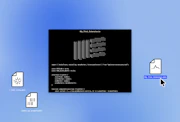
Mac: When the download of 'ableton_live_XXX.dmg' is complete double click on that file and a mounted disk named 'Ableton Live XXX' will appear on your desktop. Double-click it again to open, and drag the contained folder named 'Live XXX OS X' into your hard disk. The recommended place to put it is in the Applications folder at the root of your Mac OS X drive. After this, you can drag the mounted disk and the dmg file to trash.
Windows: The downloaded zip-file contains a file: Setup.exe. Please double-click this file to install Live.
If you do not change your computer's components or reformat your hard drive, you should not need to Unlock Live again. If you are deleting Live, please save the Unlock.cfg file located in the following paths:
- Windows (Live 3): (Installation Directory)/Ableton/Unlock
- Windows (Live 4 and later versions): C:\Documents and Settings\your user name\Application Data\Ableton\Live\Unlock
- Mac OS 9: /System/Application Support/Ableton/Live/Unlock
- Mac OS X: /User/Library/Application Support/Ableton/Live/Unlock
Note that on some Windows systems the application data folder is hidden by default. Here is how to make it visible:
Windows XP/2000
- Launch Explorer.
- Select Tools/Folder Options/View.
- Check "Show hidden files and folders."
You should not need to Unlock again if you have not changed your computer's components and you restore this file to the correct location after reinstalling Live.
- Go here to register the serial number that came with your Live Lite version. If you do not already have a user account at ableton.com you can create one at this page as well.
- Once you've registered your serial number, click here to go to the page that lists available upgrades for your registered products. Find the "Live Lite to Live Lite 6 Free Upgrade" and click "Add to Cart."
- Go to your cart and click on the "Get Free Product" Button. This will add a Live Lite 6 serial number to your account.
- Download and install the latest Live 6 update here.
- Use your new Live Lite 6 serial number (which is available from the Manage Account page and in your confirmation email) to unlock.
Please try trashing the Undo.cfg file and the Preferences.cfg file. You will find these files in the following paths:
- Windows (Live 3): (Installation Directory)\Ableton\Preferences
- Windows (Live 4 and later versions): C:\Documents and Settings\your user name\Application Data\Ableton\Live\Preferences
- Mac OS 9: /System/Preferences/Ableton
- Mac OS X: /User/Library/Preferences/Ableton
Note that on some Windows systems the application data folder is hidden by default. Here is how to make it visible:
Windows XP/2000
- Launch Explorer.
- Select Tools/Folder Options/View.
- Check "Show hidden files and folders."
Delete the Preferences.cfg file for the version you are trying to open, and re-open Live. You will find this file in the following paths:
- Windows (Live 3): (Installation Directory)\Ableton\Preferences
- Windows (Live 4 and laster versions) C:\Documents and Settings\your user name\Application Data\Ableton\Live\Preferences
- Mac OS 9: /System/Preferences/Ableton
- Mac OS X: /User/Library/Preferences/Ableton
Note that on some Windows systems the application data folder is hidden by default. Here is how to make it visible:
Windows XP/2000
- Launch Explorer.
- Select Tools/Folder Options/View.
- Check "Show hidden files and folders."
You should update the drivers for your audio device. If this does not help, please delete the Live Preferences.cfg file and try again. You will find this file in the following paths:
- Windows (Live 3): (Installation Directory)\Ableton\Preferences
- Windows (Live 4 and later versions): C:\Documents and Settings\your user name\Application Data\Ableton\Live\Preferences
- Mac OS 9: /System/Preferences/Ableton
- Mac OS X: /User/Library/Preferences/Ableton
Note that on some Windows systems the application data folder is hidden by default. Here is how to make it visible:
Windows XP/2000
- Launch Explorer.
- Select Tools/Folder Options/View.
- Check "Show hidden files and folders."